Free Online OCR: Convert Images to Text (95% Accuracy, Multiple Languages)
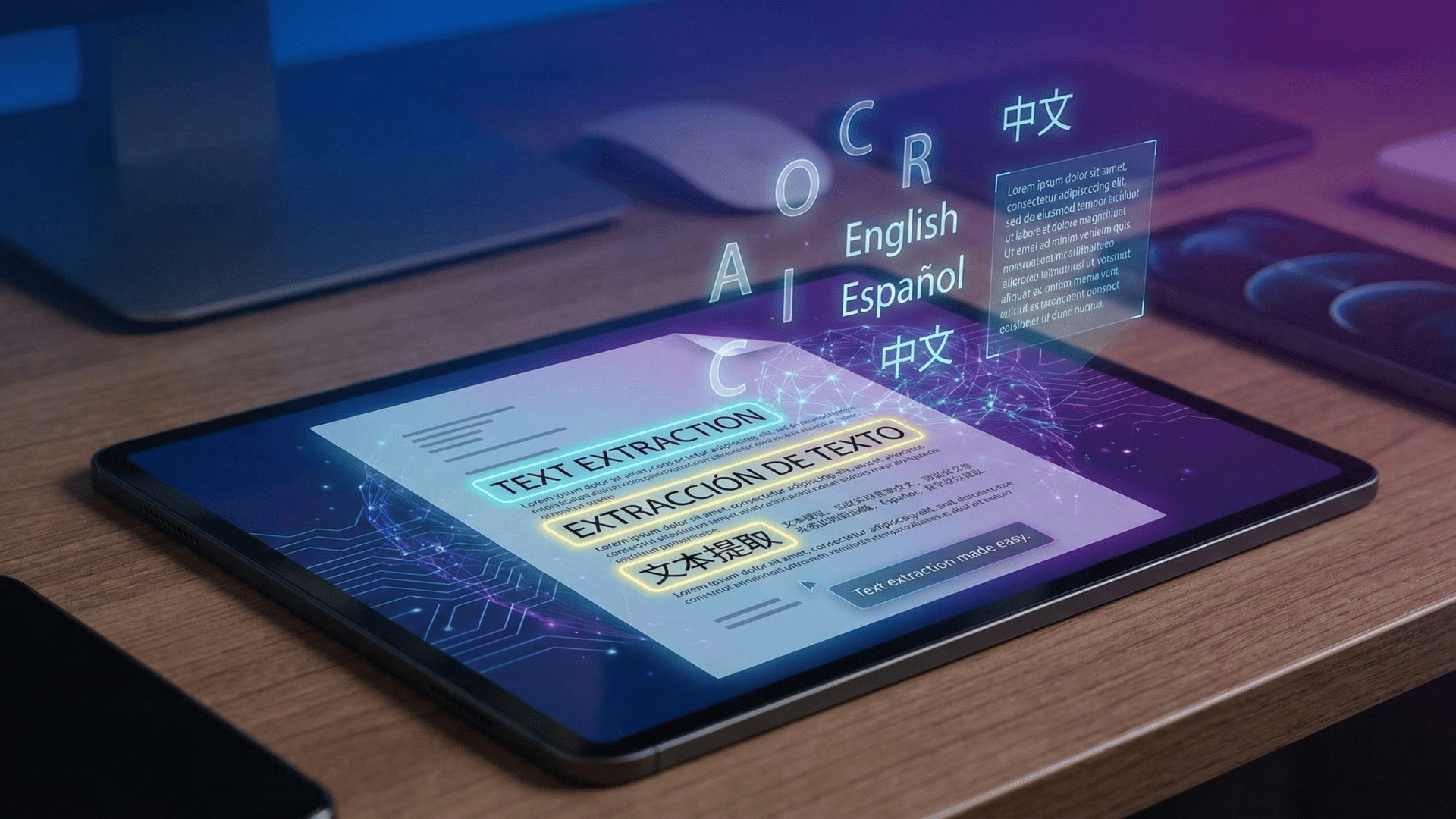
Ever Tried Copying Text from a Screenshot? Yeah, It's Painful.
You find important text in an image or PDF. You need that text. So you start typing it out manually, character by character, switching between windows.
Five minutes later, you're still typing. Making typos. Hating life.
There's a better way. It's called OCR (Optical Character Recognition), and it reads text from images so you don't have to.
What Is OCR and Why Should You Care?
OCR stands for Optical Character Recognition – software that looks at an image and figures out what text is in it. Like teaching a computer to read.
Why it's useful:
- Copy text from screenshots instantly
- Extract text from scanned documents (receipts, invoices, contracts)
- Convert handwritten notes to digital text
- Grab text from photos you took at meetings
- Pull data from images for spreadsheets
Bottom line: If you've ever needed text from an image and didn't want to retype it, OCR saves you from that pain.
How Does Online OCR Actually Work?
Modern OCR uses AI trained on millions of examples. Here's what happens:
1. Image Preprocessing
Enhances the image, adjusts contrast, removes noise
2. Text Detection
Finds where text is located
3. Character Recognition
Identifies what each character is
4. Context Analysis
Uses language models to fix obvious mistakes ("H3llo" → "Hello")
The result? About 95% accuracy on decent quality images. Not perfect, but way better than typing everything manually.
When Should You Use OCR?
📸 Convert Screenshots to Text
Took a screenshot of an article, tweet, or error message? OCR lets you grab that text without retyping.
📄 Extract Text from Scanned Documents
Got scanned invoices or contracts? OCR turns those image-based PDFs into searchable, editable text.
✍️ Digitize Handwritten Notes
Yes, OCR can read handwriting (not perfectly, but surprisingly well). Great for converting meeting notes or handwritten recipes.
🌍 Multilingual Text Extraction
Need to extract text in Spanish, French, Hindi, or Japanese? Modern OCR supports 50+ languages.
How to Get Good OCR Results (Pro Tips)
OCR isn't magic. Image quality matters. Here's how to get the best accuracy:
Use high-quality images
Clear, well-lit photos or 300+ DPI scans
Ensure good contrast
Black text on white background is ideal
Keep text horizontal
Straighten tilted images first
Choose the right language
Select your document's language for better accuracy
Pro tip: If your image is blurry, OCR will struggle. Retake the photo if possible, or use an image upscaling tool first.
Privacy Matters: Where Does Your Image Go?
Here's something most OCR tools don't tell you: they upload your images to their servers.
That receipt with your credit card number? Your confidential contract? Sitting on someone else's server.
How Our OCR Tool Protects Your Privacy
We do things differently:
- Browser-based processing – Your images never leave your device
- No data storage – We can't save your images. They're not transmitted anywhere.
- No account required – No signup, no tracking, no data collection
- Complete privacy – What you upload stays with you
Why this matters: If you're processing sensitive documents (tax forms, medical records), you need privacy. With us, you get it.
Step-by-Step: How to Use Our OCR Tool
Super simple:
Step 1: Upload your image
JPG, PNG, PDF, or most common formats
Step 2: Select language
If needed (auto-detects English)
Step 3: Wait while it processes
Usually takes just a few seconds
Step 4: Copy or download your extracted text
Ready to use immediately
Pro tip: OCR is about 95% accurate. Quickly scan the results for any obvious errors before using.
Common OCR Questions
How accurate is online OCR?
About 95% with clean, typed text. Handwritten text drops to 70-85% depending on handwriting quality.
Can OCR read handwriting?
Yes, but with caveats. Clean, legible handwriting works well. Messy scribbles? Not so much.
Does OCR work on multiple languages?
Absolutely. Modern OCR supports 50+ languages, including non-Latin scripts (Arabic, Chinese, Japanese, Hindi).
Is online OCR free?
Ours is completely free. No limits, no watermarks, no hidden costs.
What file formats does OCR support?
We support all common formats: JPG, PNG, GIF, BMP, WEBP, PDF, TIFF, and HEIC.
Can I extract text from low-quality images?
You can try, but accuracy drops significantly. If text is barely readable to your eyes, OCR will struggle too.
Is my data safe?
With our tool, yes. Your images never leave your browser. We can't see them, store them, or use them.
When OCR Won't Work (Being Honest)
OCR struggles with:
Artistic or decorative fonts
Text on busy backgrounds (like memes)
Severely damaged or faded documents
Vertical or circular text
Extremely small text
Being realistic: OCR is amazing for 90% of use cases, but it's not a miracle worker. Image quality matters.
The Bottom Line
OCR saves time. Whether you're extracting text from screenshots, digitizing documents, or converting handwritten notes, OCR beats manual typing by miles.
What to look for in an OCR tool:
- Good accuracy (95%+ on clean images)
- Multilingual support
- Privacy protection (browser-based processing)
- No hidden costs or limits
- Easy to use
That's exactly what we built. No signup, no watermarks, no data collection. Just upload your image, get your text, move on with your life.
Ready to Stop Typing and Start Extracting?
Try our free online OCR tool – no account required, complete privacy, 95% accuracy with multilingual support.
Extract Text NowYour images process locally in your browser. We never see them. That's how it should be.